How To Enable Azure Ad Single Sign-on (SSO)?
Introduction
Azure AD Single Sign-On (SSO), now part of Microsoft Entra ID, is a cloud-based authentication method that allows users to access multiple applications, websites, and services using a single set of credentials. It enhances security and user productivity by eliminating the need to remember multiple passwords for various SaaS apps, on-premises applications, and Microsoft services.
In this article, we guide you through configuring Single Sign-On (SSO) on the Microsoft Entra admin center. With Azure AD Single Sign-On (SSO), your enterprise users can sign in to RemoteIoT with their Microsoft Entra credentials.
Register Microsoft Entra application
Sign in to the Microsoft Entra admin center as at least a Cloud Application Administrator. If you don't already have one, you can Create an account for free.
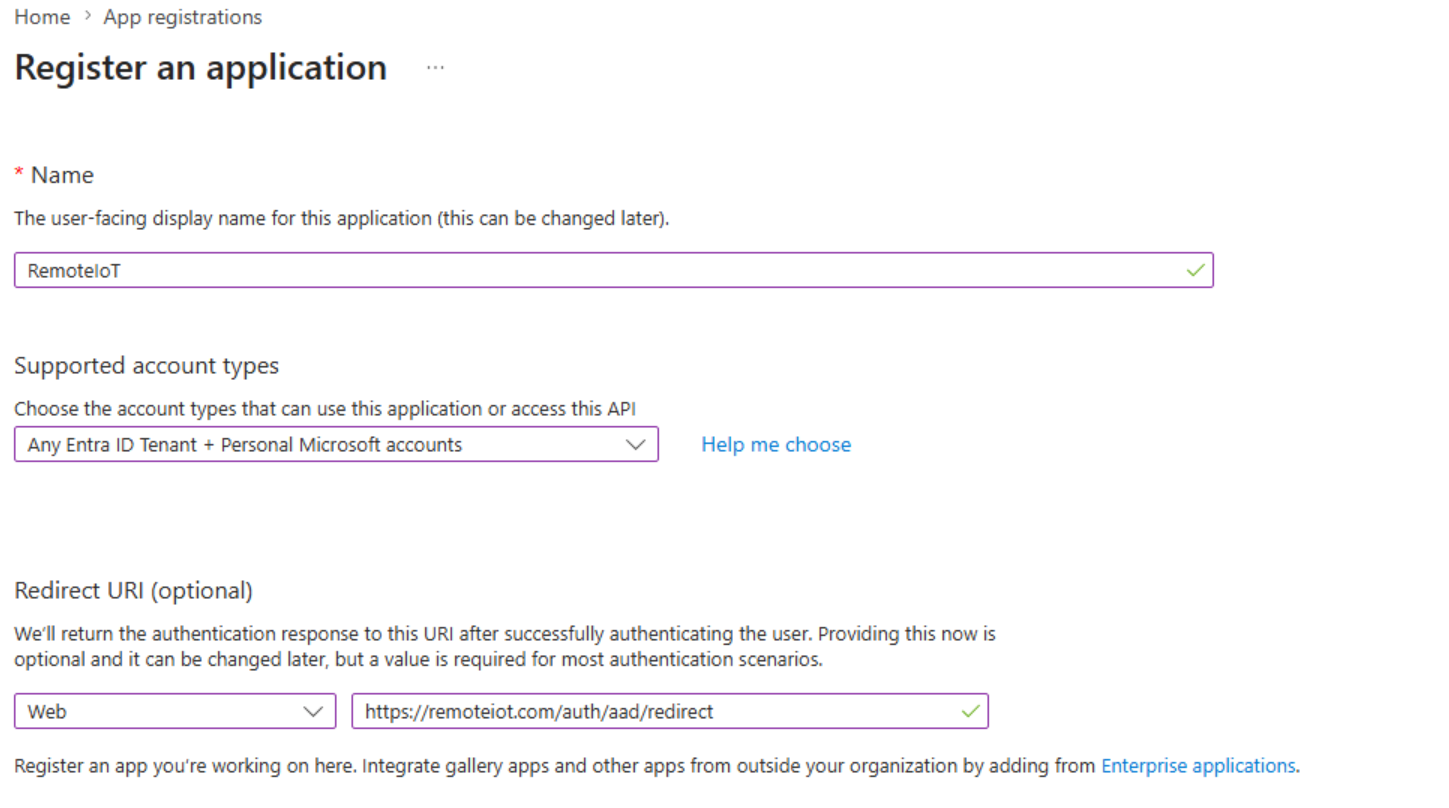
Browse to Entra ID > App registrations > New registrations.
Enter "RemoteIoT" for the name of new registrations.
Select "Any Extra ID Tenant + Personal Microsoft accounts" in the "Supported account types" field.
Select "Web" and enter "https://remoteiot.com/auth/aad/redirect" in the Redirect URI field.
Copy configures of Microsoft Entra application
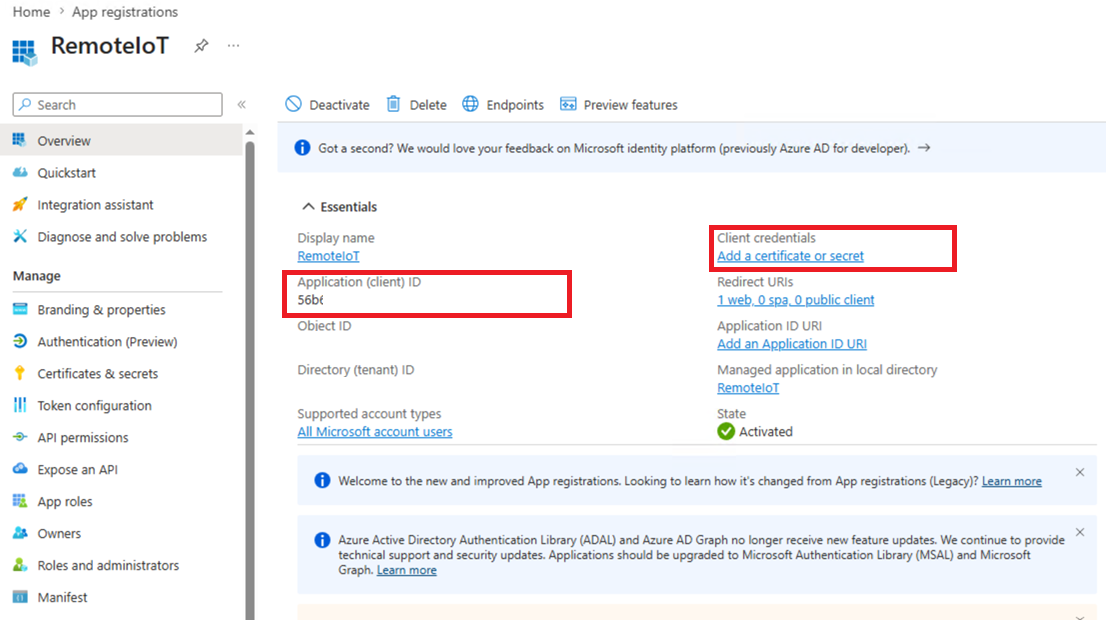
Browse to the detail page of new application
Copy Application (client) ID.
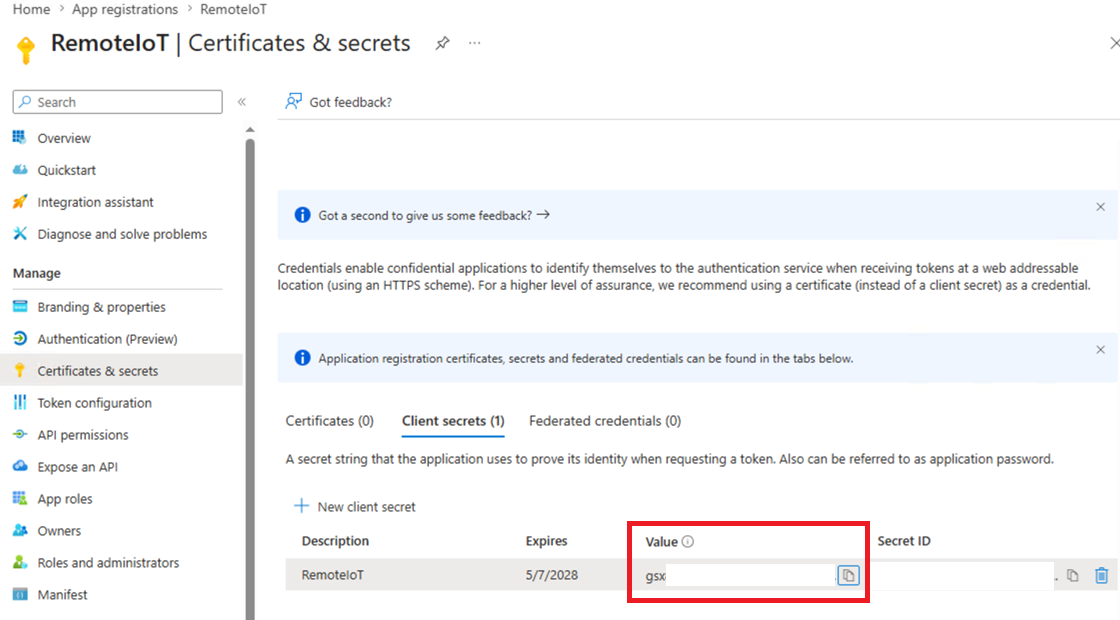
Click "Add a certificate or secret", click "New client secret" and then copy the Secret Value. Please keep track of the expiration date of the client secret and update it in time.
Save configure of Microsoft Entra application into RemoteIoT
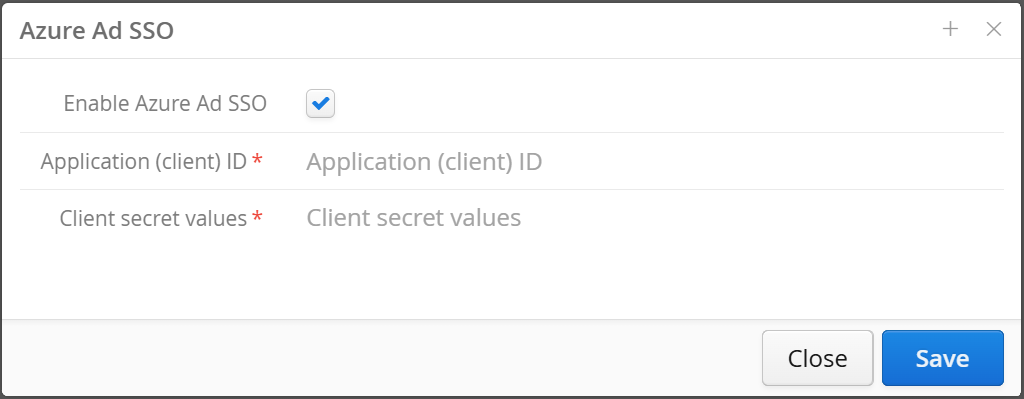
Browse to RemoteIoT User Management page. Click "Azure Ad SSO" in the menu at the top right.
Select "Azure Ad SSO" and enter Application (client) ID and Secret Value.
Create a new user and add it into RemoteIoT.
Browse to Microsoft Entra User page, click "New user", and copy the "User principal name".
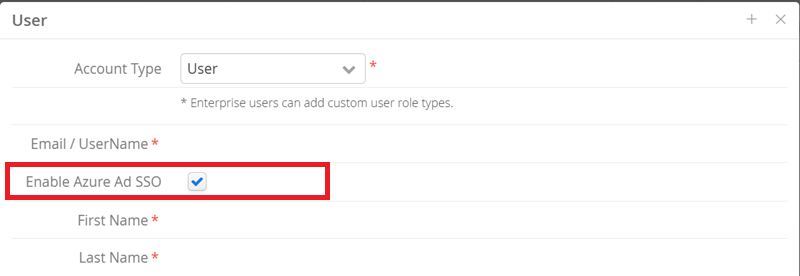
Browse to RemoteIoT User Management page and click "Add New User" in menu, enter the User principal name in Email / Username field, and select Enable Azure Ad SSO option.
Browse to RemoteIoT Login page, enter the User principal name, and then you can login RemoteIoT with its Microsoft Entra credentials.